

How do you automatically categorize expenses by department?
Quick answer: Give every cardholder a department, then add one rule that maps that department to the matching field in your accounting software. It’ll usually be a class in QuickBooks Online, a tracking category in Xero, or a department in NetSuite or Sage Intacct. Every card transaction then arrives for review with the department already filled in. In Slash, mapping rules, AI categorization for the GL account, and review and bulk approval before sync are all included on both the $0 Free and $25 Pro plans.¹ Ramp and Brex also map departments to your ledger. Mercury doesn't support Xero tracking categories as of today, and BILL codes departments through budget fields and an AI agent.
Let’s take a look at a table that compares some expense tracking platforms based on these factors. Competitor details are correct as of November 2026, checked on each provider's own site. Slash details checked November 17, 2026, in the Slash help center.
Plans and features are subject to change. Confirm current terms with each provider before you choose.
Why does department coding break down?
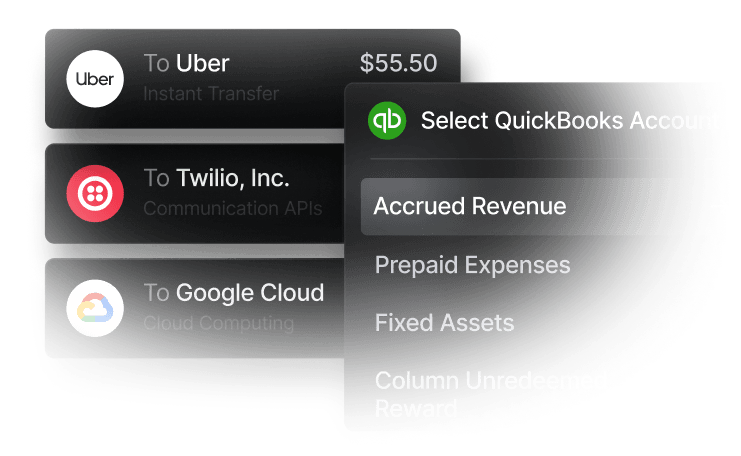
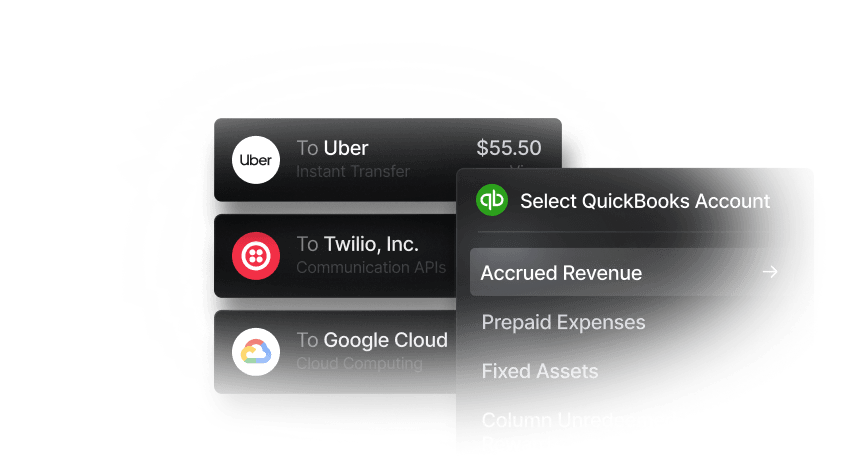
These sorts of breakdowns can happen employees tag their own spend from a dropdown and the choices drift, or because departments live only in an HR tool where nothing can map them. The fix on any platform: set the department on the person once, map it once to the field your reports group by, and review exceptions instead of tagging every swipe.
How do you set up automatic department coding in Slash?
There are five steps to doing this well. An Owner or Admin connects the accounting software; after that, the rules run on every new transaction.
Step 1: Connect your accounting software
In Slash, open Accounting in the left sidebar and click “Connect accounting app”. Choose QuickBooks Online, Xero, NetSuite, Sage Intacct, Microsoft Dynamics 365 Business Central, Rillet, or Campfire, sign in, and authorize the connection. Slash imports the records you code against: classes from QuickBooks; tracking categories from Xero; departments, locations, classes, and subsidiaries from NetSuite; and departments, locations, projects, and classes from Sage Intacct. Map each Slash account to its ledger account and choose a “Sync from” date.
Step 2: Give every cardholder a department and location
You can organize your team into departments and locations, assign managers, and see the structure as an org chart in your dashboard. Put every cardholder in a department, and in a location if you code by office or site. Naming departments the way your ledger does keeps the mapping one-to-one.
Step 3: Map each department to your ledger
- Click Accounting, then Settings in the top-right corner, and open the Mapping Settings tab.
- Find the Cardholder department rule type and click the field you want it to fill, such as your QuickBooks class or NetSuite department.
- Select one or more departments on the left, choose the matching value on the right, and click Save. Repeat for each department, and for Cardholder location if you track offices.
From then on, when a card transaction settles, Slash creates the accounting entry, applies your rules, and places it in the In Review tab with the department filled in. Pending transactions are coded once they settle. Slash's guide to accounting mappings covers every rule type.
Step 4: Let AI categorization fill the GL account
The department says which team spent the money, and the GL account says what it was for. In Accounting > Settings > Intelligence, choose whether AI can code all fields or only the ones you select. Slash compares new transactions with your prior coding and, when it has enough evidence, creates reusable mapping rules (usually by merchant or merchant category) labeled Generated by AI. If it isn't confident, it doesn't create one.
AI categorization starts with transactions that arrive after you turn it on and picks only from records that already exist in your accounting software. To keep departments coming only from your step 3 rules, choose Code selected fields only and leave department off. See configuring automated categorization.
Step 5: Review, bulk approve, and sync
Open the In Review tab, check the coded entries, fix anything that's off, and mark them Ready to Sync one at a time or in bulk. On the Ready to Sync tab, click Sync to send them to your accounting software. Synced entries move to the Synced tab; a failed sync shows its error so you can correct the value and retry. See using the Slash accounting dashboard.
Which accounting field should each department map to?
Use the field your financial reports already group by. If you're setting this up for the first time, these are the usual choices, based on what Slash imports from each system:
Setup guides: QuickBooks Online, Xero, NetSuite, Sage Intacct, Business Central, Rillet, and Campfire.
Sample mapping rules for a company on NetSuite
A company with four departments and two offices could run on this rule set. Department and location rules fill the dimensions, while merchant and category rules (or AI) fill the GL account.
A marketer in Austin who books a flight would arrive in review as 6400 Travel, 300 Marketing, Austin Office, without anyone having to type a code.
Which rule wins when two rules overlap?
When more than one rule sets the same field, Slash uses the highest-priority match, in this order: customer, recipient, payer, merchant, merchant category, card, card group, cardholder department, cardholder location, then virtual account. Department and location rank low on purpose. They’re broad defaults, and more specific rules override them.
So, it’s best to give each field one clear source: department and location rules own those fields, and merchant, category, and AI rules own the GL account.
What are the most common department coding mistakes?
- Cardholders with no department: A department rule only applies to people who have one. Check new hires when you invite them, and fill any blanks during review.
- Two rules on the same field: A card group rule that sets the department overrides the cardholder's department. Use card group rules for GL accounts or classes unless the override is intended.
- Values that don't exist in the ledger: Slash pulls accounts, classes, and departments from your accounting software, so you should create or rename them there first.
- Expecting history to recode: Mapping rules apply to future transactions. When you create a rule from a transaction, “Apply to current transactions” updates matching entries still in review.
- Syncing without review: AI-coded fields are proposals until someone approves them.
- Treating departments as budgets: In Slash, a department codes spend, but it doesn't cap it. To limit what a team can spend, put its cards in a card group with a shared limit.
How do Slash, Ramp, Brex, Mercury, and BILL compare on department coding?
1. Slash: department rules and AI on both plans, with banking included
Slash pairs business banking, corporate cards, and Bill Pay with an accounting workflow that codes by cardholder department/location, card, card group, merchant, merchant category, recipient, or virtual account.
Why it ranks first: the department rule, AI coding, bulk review, and sync to QuickBooks Online, Xero, NetSuite, and Sage Intacct are all on the $0 Free plan, at $0 or $25 a month per entity no matter how many cardholders you add.
Where it falls short: department and location rules rank below merchant, card, and card group rules, so overlapping rules need care. Additionally, sole proprietorships aren't eligible.
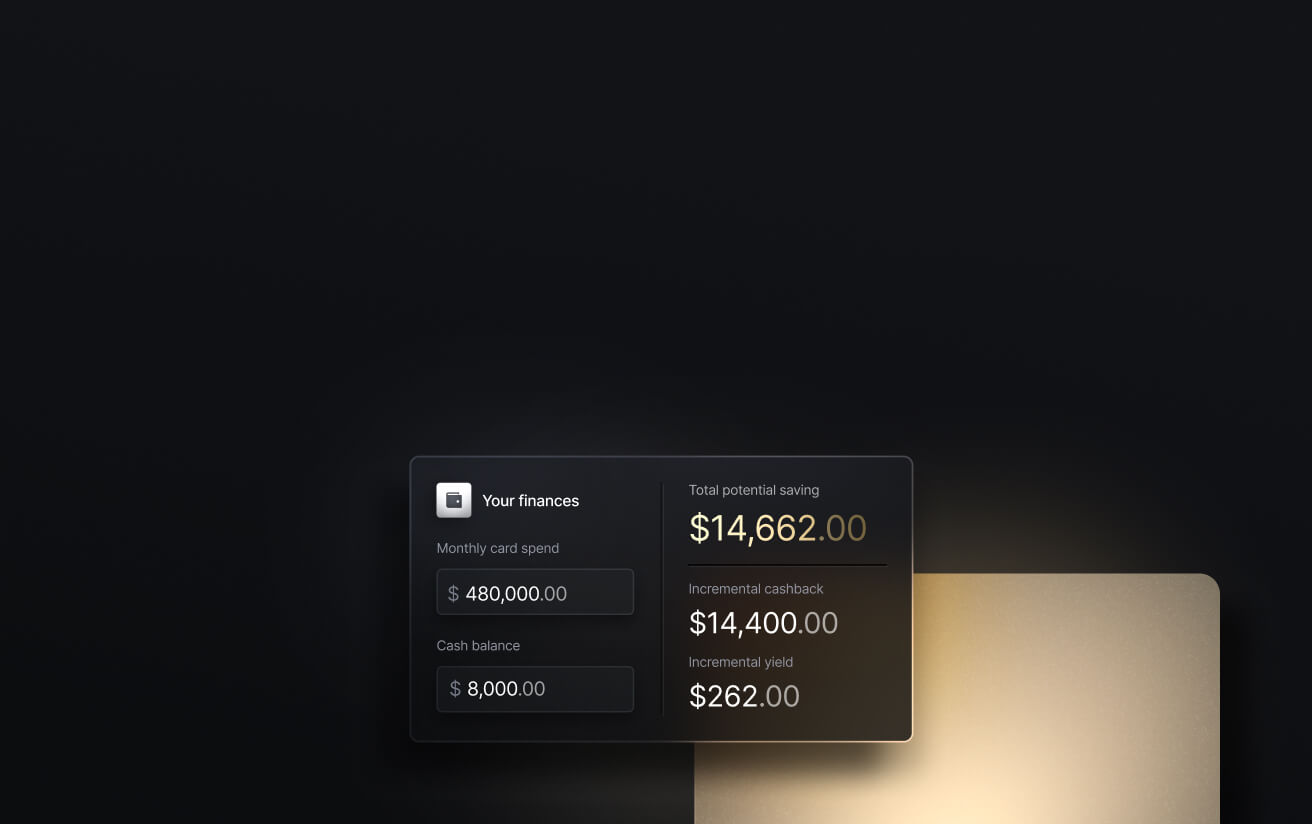
See the ROI behind your spend
Use this calculator to understand impact, then manage and track it all in Slash.

2. Ramp: the most rule options, with Advanced Rules on Plus
Ramp maps each Ramp department or location to an accounting value, and you can set defaults per employee. Advanced Rules on the Plus plan, add if/then conditions such as amount, employee, and department, automatic percentage splits, and pivot rules where one department sets several fields at once.
Where it wins: conditional rules and automatic splits.
Where it falls short: Advanced Rules and NetSuite, Sage Intacct, and Business Central sync aren’t accessible until Plus, at $15 per user a month plus a platform fee. Ramp also requires applicants to have $25,000 in a business bank account.
3. Brex: department mappings on Essentials
Brex keeps Department and Location as fields on each employee and maps them to the matching ERP fields under Accounting > Manage automations > Mappings. Custom rules can combine department with amount, merchant, category, and other fields, and take priority over mappings.
Where it wins: broad ERP coverage on the $0 Essentials plan.
Where it falls short: AI rule suggestions for custom mappings and custom field management are on Premium, at $12 per user a month. Similarly to Ramp, funded startups need $50,000 in cash to qualify.
4. Mercury: NetSuite departments, QuickBooks classes and locations
With an enriched QuickBooks Online or NetSuite integration, Mercury's Accounting page has columns for QuickBooks classes and locations and NetSuite classes and departments. Categorization rules can assign a department, and QuickBooks locations are set on the Accounting page, individually or in bulk. Mercury's own team departments aren't linked to your accounting departments.
Where it wins: $0 banking with free QuickBooks Online and Xero categorization rules.
Where it falls short: Xero tracking categories aren't supported yet, and enriched NetSuite automations need a paid plan. Mercury's plan table lists NetSuite categorization on Pro, at $350 a month or $299 billed annually.
5. BILL Spend & Expense: departments through budget fields and an AI agent
BILL Spend & Expense maps its custom fields to your accounting system's departments, locations, classes, and projects. Spenders can set a field default for transactions in their budgets, and BILL's Transaction Agent uses AI to code departments, locations, and custom fields.
Where it wins: $0 per user, with QuickBooks Desktop support.
Where it falls short: BILL's help center doesn't describe a rule keyed to the cardholder's department, and BILL's accounts payable plans are priced separately, at $49 to $89 per user a month.
Verdict: which platform is best for categorizing expenses by department?
Pick Slash if you want every card transaction coded to the cardholder's department and synced to QuickBooks Online, Xero, NetSuite, or Sage Intacct without per-user fees. The department rule, AI categorization, and bulk review are on the $0 Free plan, and the Slash Visa Platinum Card pays up to 1.5% cash back on eligible purchases (up to 2% on the Pro plan). Pick Ramp Plus for conditional rules and automatic splits at a per-user price, and Brex for department mappings on a $0 plan if you meet its cash requirement. Mercury suits teams that can set departments by hand, and BILL Spend & Expense suits teams already budgeting in BILL.
For choosing categories in the first place, see how to categorize expenses. For accounting sync by ledger, see bank accounts for QuickBooks Online and Xero and corporate cards with NetSuite and Sage Intacct sync. Head-to-head: Slash vs Ramp, Slash vs Brex, Slash vs Mercury, and Slash vs BILL.
Apply in less than 10 minutes today
Join the 10,000+ businesses already using Slash.
Frequently Asked Questions
Can I automatically categorize expenses by department and sync everything to our accounting software?
Yes. Assign each cardholder a department, then add a mapping rule from that department to your accounting field: usually a class in QuickBooks Online, a tracking category in Xero, or a department in NetSuite or Sage Intacct. In Slash, card transactions arrive in review with the department filled in, AI categorization can fill the GL account, and you bulk approve and sync, on both the $0 Free and $25 Pro plans.
Can I automatically categorize expenses by department and project without manually tagging every transaction?
Yes, if each project has its own card, card group, or virtual account. In Slash, map the cardholder's department to your department field, then map the project's card, card group, or virtual account to your project field in Mapping Settings, where your accounting software has one (Sage Intacct does, for example). Anything left blank can be filled in bulk during review.
How to Categorize Expenses for Your Business: Examples & Best Practices

Which expense automation platforms sync card activity directly to Xero and auto-categorize by department?
Slash, Ramp, and Brex. Slash imports your Xero tracking categories and can map each cardholder's department to one; Ramp maps its departments to accounting values and connects to Xero on its free plan; and Brex imports Xero tracking categories and maps its Department field to your accounting fields on Essentials. Mercury syncs to Xero but doesn't support Xero tracking categories yet.
Do any integrated banking platforms offer automatic expense categorization without per-user tagging fees?
Yes. Slash includes mapping rules, cardholder department and location rules, and AI categorization on its $0 Free and $25 Pro plans, priced per entity with no per-user fees. Mercury includes QuickBooks Online and Xero categorization rules at $0. Ramp and Brex have $0 plans, but Ramp's Advanced Rules and Brex's AI rule suggestions for custom mappings are on plans priced per user.
How AI Transaction Categorization Can Help Accounting Teams
Does Slash's AI categorization use the cardholder's department?
AI categorization can fill the department field, but the dependable way to code by department is a cardholder-department mapping rule. Slash's AI favors reusable rules built on merchants and merchant categories, and can also use a card, card group, or subaccount. To keep departments rule-only, set AI to Code selected fields only and leave department off.
Read more from us


