

How do you reconcile corporate card transactions?
Quick answer: You should reconcile a corporate card by matching each transaction to a receipt, coding it to the right GL account and class, department, or location, clearing exceptions, and syncing it so the card account in your ledger ties to the period's activity. Slash's corporate card¹ and accounting dashboard handle much of that during the month: receipt and memo policies prompt cardholders by text, mapping rules and AI pre-code transactions, and reviewed entries sync to QuickBooks Online, Xero, NetSuite, or Sage Intacct on both the $0 Free and $25 Pro plans.
The six steps below work with any corporate card and any ledger. Where Slash has a feature for a step, the table and the step say where to find it.
Slash product details checked November 16, 2026, in the Slash help center. Ramp details as of November 2026, from ramp.com.
Menu names and features change. Check the relevant help center articles for the current steps.
What do you need before you start?
Gather four things for the period you're closing (for example: October 1 to October 31):
- The card activity: In Slash, monthly account statements download from the dashboard, and the Transactions page exports activity filtered by date range, account, card, merchant, or status.
- The ledger detail for the card account: Run the account's transaction report for the same dates in QuickBooks, Xero, NetSuite, or Sage Intacct.
- Receipts and memos: Every charge above your receipt threshold needs a receipt and/or memo before you close.
- Your expense policy: Which purchases need receipts, which GL accounts and classes to use, and who approves exceptions. If you don't have one in writing, it’s wise to start with a company credit card policy.
How do you reconcile corporate card transactions step by step?
Step 1: Collect receipts and memos
Receipts collected on the day of purchase can take seconds. Receipts chased three weeks later, on the other hand, take up most of the close. Set the rule once and let the system handle it from there.
In Slash, submission policies live under Payables > Payments > Policies > Submission Policy. A receipt policy requires receipts on card transactions above a threshold you set, for the merchants and cards you choose, and lets you decide when it's enforced and when cardholders get a text. A memo policy does the same for short business-purpose notes. Cardholders can also forward email receipts to a Slash receipts inbox, which only accepts the sender domains and email addresses you approve. See “configuring submission policies” to learn more.
For example, a company that buys team lunches on its cards might require receipts above $40 and memos above $75. A $30 lunch would go through with no follow-up, while a $90 lunch would prompt the cardholder for both.
Step 2: Match transactions to the card activity
Compare the period's card activity with the card account in your ledger. Every settled charge, refund, and card payment should appear exactly once. Matching by count and total first tells you quickly whether you're hunting for one missing transaction or a whole day.
Two timing rules prevent most mismatches. Reconcile settled transactions only, because pending authorizations can still change or drop. In Slash, a transaction gets an accounting entry only when it settles or is refunded, so pending charges never reach the review queue. You should also match each refund to the original charge's expense account rather than booking it as income.
The Slash Visa® Platinum Card is a charge card that settles at the end of each business day from your Slash cash account, shown as a "Daily Credit Card Payment" transaction. When you connect your ledger, map the Slash cash account and the card account to separate ledger accounts, and make sure the daily payments post as transfers between them, not as expenses. Because settled charges are paid off daily, a card account in your ledger that still shows a large balance at month-end usually means purchases or payments haven't synced.
Step 3: Code each transaction to the GL and its dimensions
Coding means assigning the expense account plus any class, department, location, project, customer, or subsidiary your ledger requires. Coding at the transaction level, before the sync, is what makes department and project reports trustworthy.
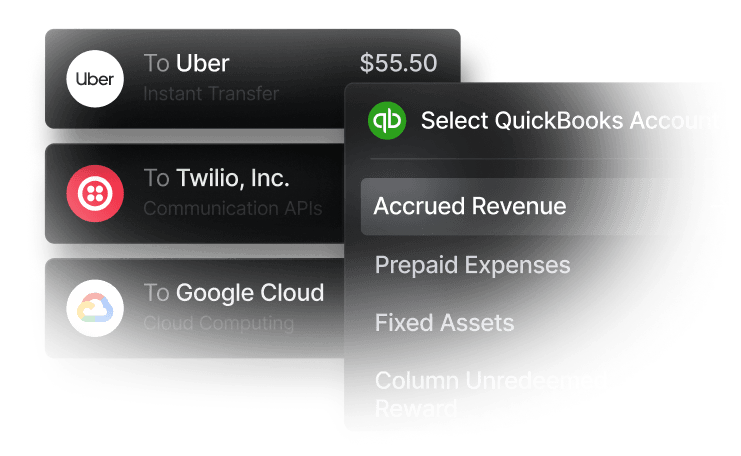
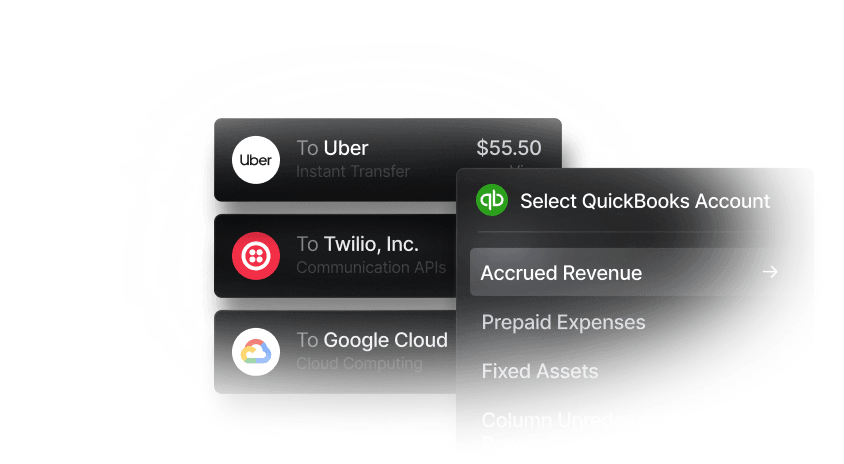
Slash pre-fills these fields two ways. Mapping rules, under Accounting > Settings > Mapping Settings, link a card, card group, merchant, merchant category, cardholder department/location, virtual account, payment recipient, payer, or invoice customer to a value in your accounting software. When two rules set the same field, Slash uses the higher-priority rule, and merchant rules rank above card rules. So, if a card’s mapped to Marketing and Starbucks is mapped to Coffee Expense, a Starbucks charge on that card lands in Coffee Expense.
Automated categorization, under the Intelligence tab in accounting settings, uses AI to learn from your prior coding and create mapping rules for new transactions. You can let it fill every supported field, only the fields you pick, or none. It selects from accounts, vendors, and dimensions that already exist in your ledger and never creates new ones. It works on transactions that arrive after you turn it on, and its rules carry a "Generated by AI" label so reviewers can check them.
When one purchase covers two departments or expense types, split it. In the In Review tab, choose Split transaction from the row menu and give each line its own account, amount, and dimensions. Slash won't save the split until the lines add up to the original amount, and each line syncs as its own entry.
Step 4: Review exceptions
Work the exceptions, not every line. In a typical month, the list might look like this:
- Charges above your threshold with no receipt or memo
- Personal purchases on a company card, which your policy should say how to repay and record
- Duplicates, usually from importing the same card activity through both a bank feed and a direct sync
- Refunds and disputes that need to offset the original charge
- Anything sitting in a catch-all account such as Uncategorized Expense
- Purchases made for a different entity or subsidiary
In Slash, the In Review tab is where you fix these: change the coding, edit notes, attach receipts, or split. Transfers you record a different way in your books can go to the Archived tab so they don't sync.
Step 5: Sync to your accounting software
Once a transaction is correct, mark it Ready to Sync, one at a time or in bulk. From the Ready to Sync tab, click Sync to QuickBooks, Xero, NetSuite, or Sage Intacct and confirm. Synced transactions move to the Synced tab.
If a sync fails, the transaction appears in the Failed tab with the error. Slash's help center lists the usual causes: the mapped account was deleted or renamed, a required tracking dimension is missing, or the connection needs to be re-authorized. Fix the field or reconnect, then retry. If the connection lost authorization, Slash sends you to a reconnect page.
Step 6: Close the period
Before you lock the month, check three things. Nothing dated in the period is left in In Review or Failed. The card account in your ledger ties to the period's settled charges, refunds, and payments. And every charge above your receipt threshold has its receipt attached; Slash's export guide recommends attaching receipts before you sync or export. Then lock the period in your accounting software so late edits can't change closed numbers.
How does Slash sync with QuickBooks Online, Xero, NetSuite, and Sage Intacct?
All four connect the same way. An Owner or Admin opens Accounting from the sidebar, clicks Connect accounting app, chooses the software, and authorizes Slash. You then map each Slash cash and card account to its ledger account and pick a "Sync from" date, which sets how far back Slash pulls transactions for review. All four integrations are included on both the $0 Free and $25 Pro plans.
Changes flow both ways. A new vendor or department added in your ledger appears in Slash's coding dropdowns automatically, and bills paid through Slash can sync as both the bill and the bill payment, so payables show their full history in the ledger. Here are the setup guides: QuickBooks Online, Xero, NetSuite, and Sage Intacct.
Example: a software subscription on its own virtual card (QuickBooks Online)
Give each recurring subscription its own virtual card, which both Slash plans allow without limit, then add a card mapping rule that sends it to Software Subscriptions and the Engineering class. Each month's charge arrives in In Review already coded, and you mark it Ready to Sync without editing a field.
Example: team meals coded by merchant category (Xero)
Map the Restaurants merchant category to an Employee Meals account and pair it with the receipt and memo policy from Step 1. A $90 team lunch shows up coded to Employee Meals, and if text reminders are on, the cardholder gets a text asking for the receipt and a memo.
Example: one card program across NetSuite subsidiaries
A company with two US subsidiaries in NetSuite would assign a default subsidiary to each Slash account during setup. That subsidiary carries onto every transaction line and split, so reviewers only change it for the occasional purchase made on behalf of the other entity.
Example: project costs in Sage Intacct
A firm that tracks job costs would map each crew's card group to its Sage Intacct project. Purchases on those cards arrive tagged with the project, and the job's costs are in Sage Intacct as soon as the batch syncs.
What are the most common corporate card reconciliation errors?
- Counting pending charges: Authorizations can change or drop before they settle. Reconcile settled activity only.
- Importing the same activity twice: If a bank feed and a direct sync both bring card transactions into the ledger, every purchase posts twice. It’s best to pick one source for card activity.
- Booking refunds as income: A refund should reduce the expense it reverses, in the same account and dimensions.
- Recording card payments as expenses: Payments from your bank account to the card are transfers. With the Slash Card, that's the daily payment from your cash account.
- Renaming or archiving ledger accounts mid-month: Mapping rules point to specific accounts. Archive or rename one, and syncs will fail until you update the rule.
- Leaving catch-all coding in place: A balance in Uncategorized Expense at close means review was skipped.
- Closing before receipts are in: Missing documentation turns into an audit question later. Ask for receipts at the time of purchase, not at month-end.
- Coding to the wrong entity: In multi-entity setups, check the subsidiary or entity on purchases made for another company.
Verdict: where does Slash fit?
Slash suits startups and established small and mid-sized businesses that want the corporate card, the business account, and the accounting sync in one place. The Slash Visa® Platinum Card pays up to 2% cashback on eligible purchases and settles daily from your Slash account, so there's no interest or carried balance. Unlimited virtual cards, merchant category limits, and per-transaction limits come with both plans, and Slash costs $0 or $25 a month per entity with no per-user fees (see Slash pricing).
For reconciliation, the Slash accounting dashboard is the staging area: receipts and memos collected by policy, coding filled in by mapping rules and AI, splits, and a review queue that syncs to QuickBooks Online, Xero, NetSuite, or Sage Intacct on every plan. Your accounting software stays the system of record for reports, bank reconciliation, and entries that don't come from Slash.
Some teams need more expense automation than that. Ramp's free plan includes automatic receipt collection and matching and lets employees complete expenses by SMS or Slack, and Ramp Plus, at $15 per user a month plus a platform fee, adds AI coding for every field and can lock cards automatically when compliance is unmet. Ramp also requires $25,000 in a business bank account to qualify. See Slash vs Ramp for a side-by-side.
For the rest of the close, see the month-end close checklist. For ERP-specific setup, see corporate cards with NetSuite and Sage Intacct sync.
Apply in less than 10 minutes today
Join the 10,000+ businesses already using Slash.
Frequently Asked Questions
What is corporate card reconciliation?
It's the process of confirming that every corporate card transaction for a period is recorded once in your general ledger, coded to the right account and dimensions, and supported by a receipt, and that the card account in your ledger ties to the card activity and payments. Most companies do it as part of the month-end close.
How often should you reconcile corporate card transactions?
At least monthly, before you close the books. Reviewing weekly keeps the month-end list short when you have a large number of cardholders. With the Slash Card, settled charges are paid daily and reach the accounting review queue as they settle, so you can code and sync throughout the month.
Accounting Month-End Close: 8 Steps to Streamline Your Process

What's the difference between credit card reconciliation and bank reconciliation?
Bank reconciliation matches your bank statement to the cash account in your ledger. Card reconciliation matches card transactions to the card account and also checks each charge's coding and receipt, so it usually takes longer: more transactions, more people, more documentation. Payments from the bank to the card appear in both.
Which accounting software does Slash sync with?
QuickBooks Online, Xero, NetSuite, and Sage Intacct, on both the $0 Free and $25 Pro plans. Slash's help center also documents connections to Microsoft Dynamics 365 Business Central, DualEntry, Rillet, and Campfire.
Bank Accounts for QuickBooks Online and Xero (2026)

What happens if a Slash transaction fails to sync?
It moves to the Failed tab with the error details. Common causes include a mapped account that was deleted or renamed, a missing required dimension, or a connection that needs to be re-authorized. Fix the field or reconnect, then retry the sync.
Can I split one card transaction across departments or projects?
Yes. In the In Review tab, choose Split transaction, then give each line its own account, amount, and dimensions such as class, department, location, project, or subsidiary. The lines must add up to the original amount, and each line syncs as a separate entry.
Can Slash require receipts only above a certain amount?
Yes. A receipt policy can require receipts above a threshold you set, for specific merchants or cards, and can text cardholders when a receipt is needed. A memo policy works the same way for business-purpose notes.


