
Unknown chargesmean unknown risk
Understand your business exposure before it compounds.
Seeing a GOOGLE MICROSOFT APPS charge on your statement?
Common ways GOOGLE MICROSOFT APPS charges might appear on your statement
- GOOGLE *MICROSOFT APPS
- GOOGLE MICROSOFT APPS
- GOOGLE *MICROSOFT
- GOOGLE *MS APPS
- GOOGLE MSFT APPS
- GOOGLE *MICROSOFT 650-253-0000
- GOOGLE *MICROSOFTAPPS G.CO/HELPPAY#
- GOOGLE *MICROSOFTAPPS CA
What is Google Microsoft Apps?
GOOGLE MICROSOFT APPS refers to a legitimate billing descriptor from Google, indicating that a payment was processed through Google Play or Google Workspace for a Microsoft-related app or service. This typically happens when users purchase or subscribe to Microsoft products, such as Office, OneDrive, or Teams, through Google Play or a Google-managed billing channel. The charge represents a collaboration between Google’s payment system and Microsoft software distribution. Learn more at payments.google.com.
Common causes for Google Microsoft Apps charges
- Subscription to Microsoft 365, Office, or OneDrive billed through Google Play.
- In-app purchases or upgrades within Microsoft mobile apps (Word, Excel, Teams).
- Renewal of a Microsoft service tied to a Google account payment method.
- Trial conversion to a paid Microsoft subscription initiated on an Android device.
- Charges from shared or family-linked Google Play accounts tied to Microsoft apps.
Decoding Google Microsoft Apps charge tags
- GOOGLE / GOOGLE*indicates that the charge was processed via Google’s billing system.
- MICROSOFT APPS / MSFT APPS denote the specific Microsoft software or subscription involved.
- 650-253-0000 is Google’s customer service number appearing on many Google Play transactions.
- G.CO/HELPPAY#directs users to Google’s payment help page for transaction verification.
- CA / US indicates the billing region (California or United States) of the payment processor.
What to do
if you
don’t recognize this charge
Spot, verify, and resolve suspicious charges in minutes.
Contact your bank.
Call your bank using the number on the back of your card.
Contact the merchant.
Call their customer service to verify the charge and get transaction details.
Dispute the charge & monitor account.
If it appears fraudulent, report it to your bank or card issuer.
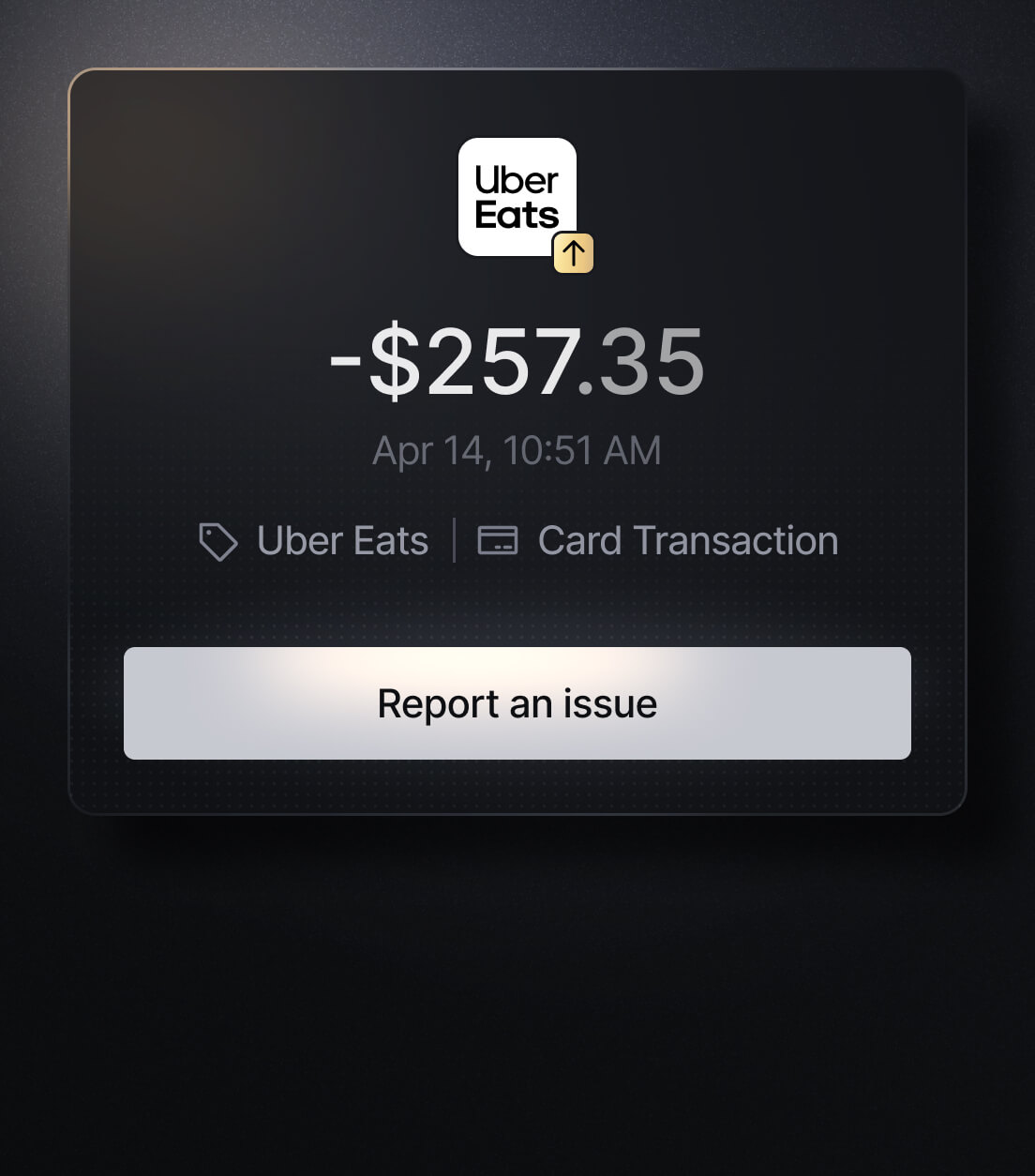
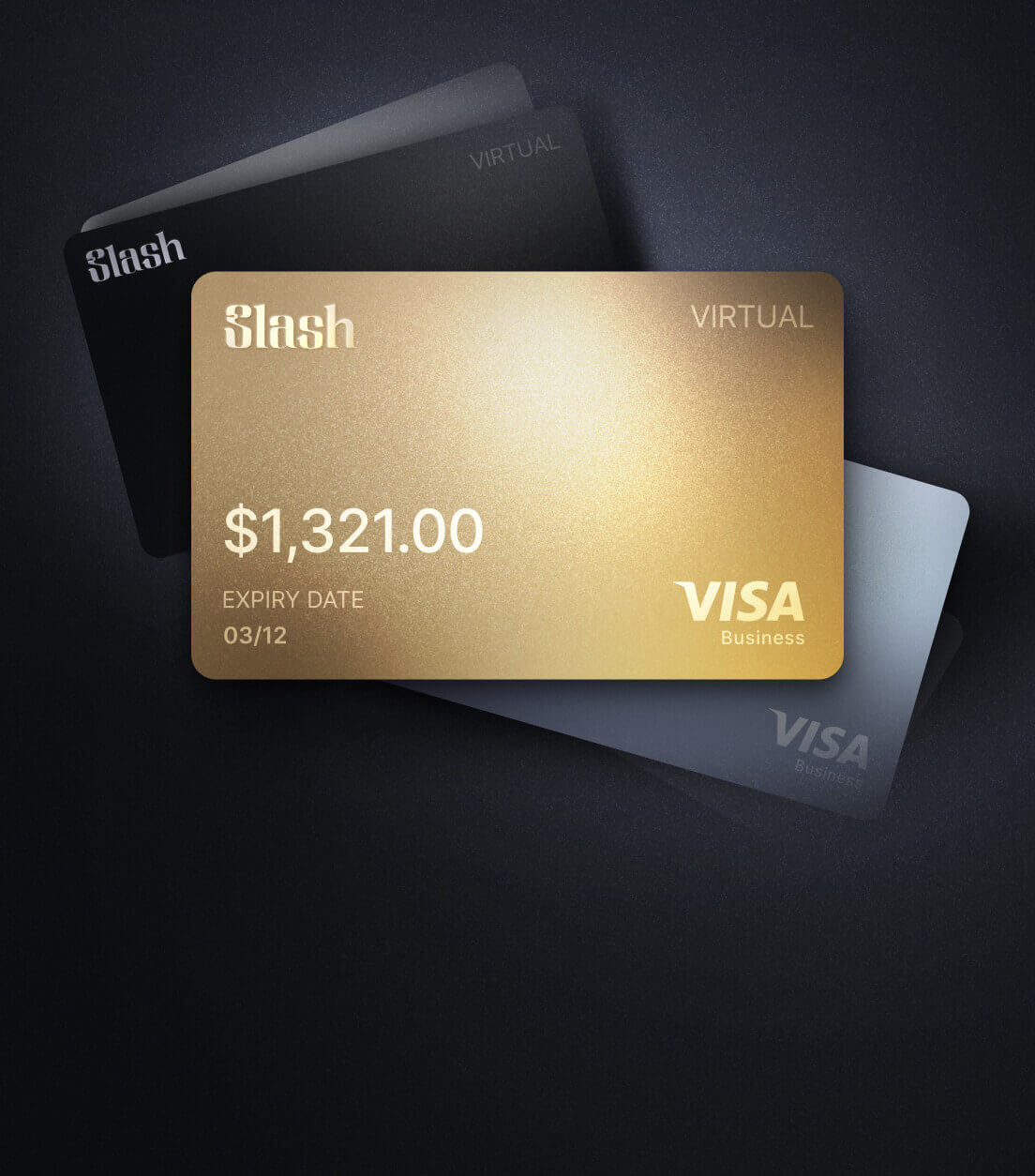
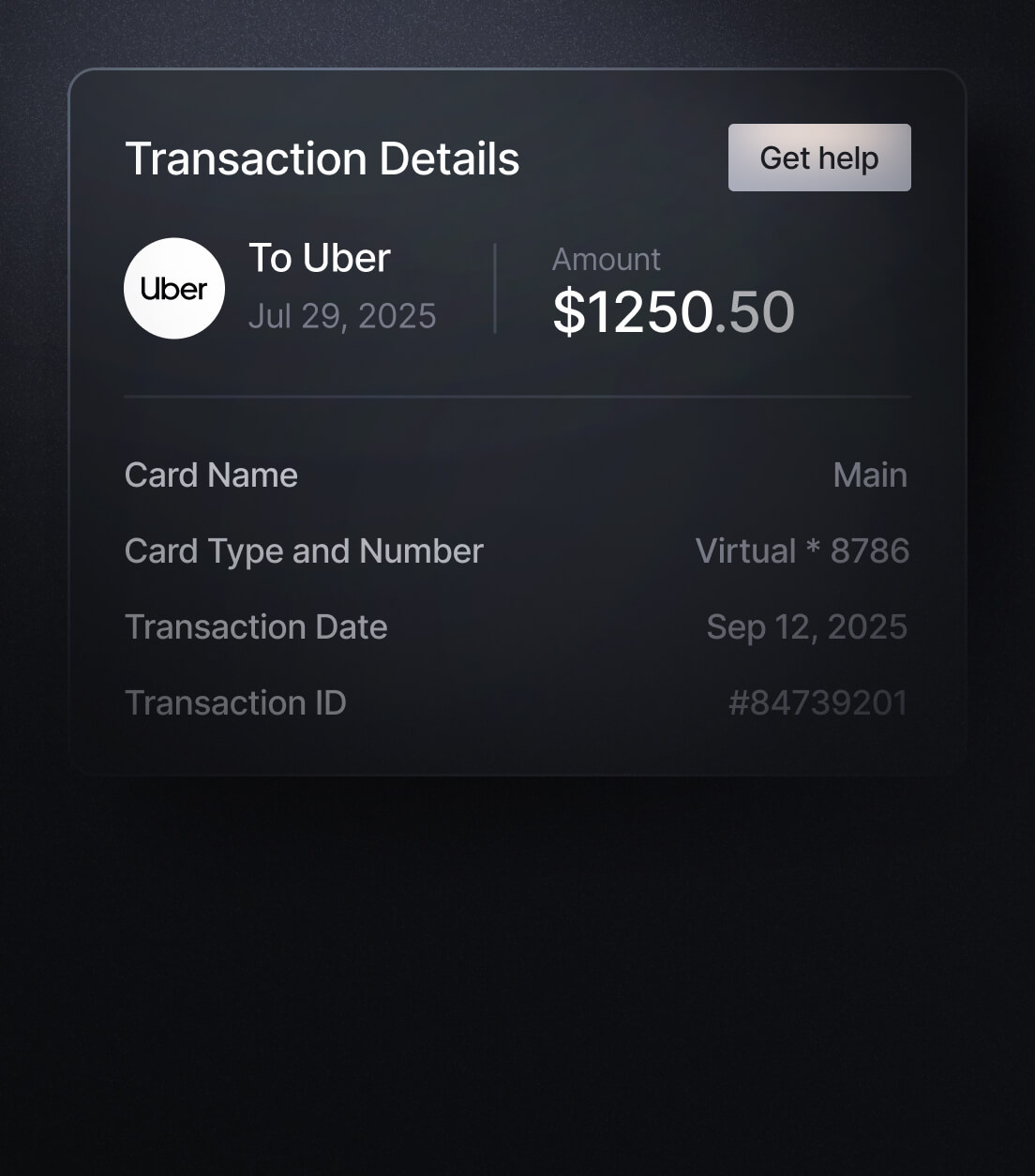
Easily Identify Every Charge with Slash
See exactly where, when, and how each charge occurred, complete with merchant names, payment types, and connected team cards with Slash’s detailed card logs and expense tracking tools.
Discover more insights


Apply in less than 10 minutes today
Join the 10,000+ businesses already using Slash.