

How to Make an Invoice: A Guide for Creating Professional Invoices Quickly and Easily
You’re trying to create a professional invoice for a high-value client, but small problems start piling up. You almost forgot to list your account number, and the formatting doesn’t quite look right. Once the invoice is sent, it’s filed away and forgotten. Weeks later, you realize the payment never came through, and you’re left retracing your steps to figure out why.
Invoices matter more than you might think. A good invoice does more than request payment. It creates a clear record of your agreement and helps you get paid on time. It's also often the first official document your client sees, which means it can seriously impact their impression of your business.
In this guide, we’ll explain what an invoice is, what information it should include, and how to create one step by step. We’ll also cover how automated invoicing software can simplify how you create, send, and collect invoices. Along the way, we’ll highlight Slash’s new invoicing feature and show how it helps businesses generate consistent invoices, track outstanding balances, and collect payments within our full-stack business banking platform.¹
What is an invoice?
An invoice is a document used to request payment from a client for goods or services. Besides their explicit purpose, invoices also play an important role in managing accounts receivable and maintaining accurate financial records for tax and reporting.
An invoice outlines the details of a transaction in an itemized list format. Each line item represents a product or service provided, along with the goods’ quantity and price. The subtotal reflects the value sum of all line items. Invoices may also include applicable tax, additional fees, or applied discounts, all of which are reflected in the final balance owed.
Every invoice should include key identifiers and payment instructions. A unique invoice number helps both the business and the client reference the transaction, while clearly defined payment terms explain how and when the invoice should be paid. Invoices may also correspond to purchase orders (POs), which are documents clients submit when requesting goods or services. Matching invoice and PO identifiers helps keep records aligned within accounts receivable management software.
After you make an invoice, it’s sent to the customer—usually by email, invoicing software, or a client portal—to formally initiate the payment process.
How to create an invoice: A step-by-step guide
Creating an invoice doesn’t have to be complicated, but it does require a few key details to be done correctly. The steps below walk through how to create a clear, professional invoice that’s easy for clients to understand and pay:
1. Choose an invoice template and format
Start by selecting an invoice template that fits your business needs. Using one template for all your invoices can help ensure consistency within your records and prevent omitting key details. You can create your invoice as a digital document using a word processor, accounting software, or a business banking platform like Slash. Many businesses save and send invoices as PDFs, which preserve the original formatting and prevent edits.
2. Add your business information
At the top of the invoice, clearly list your business information, including your business name, address, email, and phone number. This allows the client to quickly identify the sender and know how to reach you with questions. Further down the invoice, include clear payment instructions for the client, such as the deposit bank account details and any notes about accepted payment methods.
3. Include your client’s details
Next, add the client’s name, company name, and billing address at the top of the invoice. Including accurate client details ensures the invoice is routed to the correct person or department, which can also prevent delays in processing or payment.
4. List the goods or services provided
Create an itemized list of the goods or services you provided. Each line item should describe the product or service, the quantity or hours billed, and the price.
5. Calculate totals, taxes, and adjustments
Once all line items are listed, calculate the subtotal, then apply any required taxes, fees, or discounts. Clearly show how each adjustment affects the final total so the client can easily understand how the amount due was calculated.
6. Review, save, and send the invoice
Before sending, review the invoice for accuracy and completeness. Once finalized, send the invoice to your client via email, invoicing software, or a client portal to initiate the payment process.
How to generate an invoice using Slash
Slash’s built-in invoice generator allows you to create, track, and send invoices directly from your dashboard. Customer details, invoice amounts, and due dates are stored in one place, which helps make invoicing simpler and reduces manual data entry or follow-up. Invoices can be generated and delivered in just a few steps, with automatic recordkeeping for your books. Here’s how to use it:
- Navigate to the Invoicing page within the Slash dashboard, where you can view all your outstanding and paid invoices, along with amounts and due dates.
- To create an invoice, click New Invoice in the top right corner. You’ll first be prompted to select a recipient. You can choose a recipient using their saved contact and banking information, or add a new customer’s details manually.
- You will then be prompted to add line items to the invoices, including quantities and prices. Slash automatically assigns a unique invoice number to keep it organized in your records. During this step, you can also apply sales tax or discounts as needed.
- Next, choose a due date and deposit account. Optionally, you can enter a memo that provides a description of the invoice or any additional payment instructions.
- Once all information is entered, you can review a sample of your invoice before creating and sending it. After you click Create Invoice, a copy of the invoice is both stored in your Slash dashboard and automatically sent to the recipient’s email address.
The standard in finance
Slash goes above with better controls, better rewards, and better support for your business.

Manual invoicing vs. invoicing software: pros, cons, and trade-offs
The sections below explain how invoicing software handles formatting, delivery, payment, and tracking in ways manual methods simply can’t:
Digital invoices can streamline payment
Digital invoices simplify the invoicing process by reducing friction between sending an invoice and receiving payment. Some tools, like Slash, allow recipients to initiate payment directly from the invoice itself, with a clear option to pay at the bottom of the document. Keeping all invoices tracked in one place also makes it easier to see which payments are still outstanding, helping teams manage accounts receivable more efficiently.
Invoice templates can be generated automatically
When you create an invoice in a word processor or spreadsheet, it’s easy for formatting to break. Logos can shift tables, spacing can become inconsistent, and totals may not calculate correctly. Slash eliminates this step by capturing the required invoice details upfront and automatically inputting them into a consistently formatted, professional invoice and accompanying email.
Integration with your business banking and accounts receivable software
If your invoicing process isn’t connected to your banking platform, you’re probably manually checking your bank account to confirm payments and then recording activity in separate systems. With Slash, all invoice documents are listed in the dashboard, and incoming payments are automatically included in your analytics for a real-time view of cash flow.
Invoices numbers and purchase orders can be matched automatically
Some accounting and invoicing software can automatically match invoice numbers with corresponding purchase orders with either two-way matching (invoice to PO) or three-way matching (invoice, PO, and payment or receipt). When invoices and payments are synced from a tool like Slash into QuickBooks, your accounting system can keep the PO, invoice, and payment records linked, reducing the need for manual reconciliation.
Improve accuracy by using saved recipient information
Manual invoicing often requires digging through emails or past records to find correct client details. Invoicing software like Slash stores recipient contact and payment information, so each new invoice pulls from verified data. This can reduce the chance of entry errors, better ensure invoices are sent to the right destination, and help keep the invoicing process consistent as your customer list grows.
What is the best free invoice generator?
Free invoice generators differ significantly in scope and functionality. Below, we compare the leading free options and outline which tools offer the most complete invoicing capabilities:
Best overall: Slash
Slash offers a unified financial platform that combines invoicing, business banking, and spend management in a single system. Its free plan includes access to core features such as corporate cards, global payment rails, expense tracking, financial analytics, and direct accounting integrations—capabilities that are often paywalled with other providers.
Invoices created in Slash support embedded payment processing, allowing recipients to pay directly from the invoice while payments are automatically recorded in your dashboard. Businesses can monitor outstanding accounts receivable and track invoice status alongside other company transactions. With upcoming support for crypto payments directly from invoices to a Slash account, expanding payment options without changing how invoices are created or managed.
Microsoft Word
Microsoft Word is a document editor, not an invoicing software, which means invoices must be created and maintained manually. Its primary advantage is design flexibility, especially for users already familiar with Microsoft Office who want full control over layout and formatting. However, there's no automation, no payment tracking, no reminders, no calculations, and no payment processor integrations—which can make it less efficient and more error-prone for regular invoicing.
Wave
Wave combines invoicing with basic accounting tools, which can be useful for freelancers and small businesses managing simple finances. The catch is that Wave makes money through high payment processing fees: 2.9% + 60¢ for card transactions and 1% for ACH transfers. Plus, Wave’s receipt scanning feature is a paid add-on for $8/month. Customer support for free users is limited to help articles and a chatbot, which can be restrictive when issues arise.
PayPal Invoicing
PayPal Invoicing is primarily designed as a payment collection tool rather than a comprehensive invoicing system. Customers can pay using PayPal balances, credit cards, Venmo, or Pay Later options, but businesses are locked into PayPal’s payment ecosystem and fee structure. Processing fees are relatively high at 3.49% + 49¢ for most commercial transactions, with international payments costing 4.49% plus additional fixed fees, which can significantly increase costs over time.
Zoho Invoice
Zoho Invoice provides a wide range of features for a free product, including expense tracking and payment processing. However, the free plan does come with some significant limitations: each Zoho Invoice account can only have a maximum of three users, you’re limited to 1,000 invoices per year, and the free version also lacks more advanced capabilities such as approval workflows and expanded invoice customization.
Square Invoices
Square Invoices integrates directly with Square’s POS system, making it convenient for businesses already operating within the Square ecosystem. The free plan includes native payment processing and basic project management, but processing fees can be high: 1% for ACH bank transfer and 3.5% + 15¢ for manual entry or cards on file. Customer support is also limited, as phone support is unavailable unless you upgrade to Square Premium ($149/month).
Simplify your invoicing process with Slash
Most free invoicing tools are limited to document creation. Some let clients pay through an online portal, but only at a high processing cost. Others focus on customization while leaving out the tools needed to manage invoices over time.
Slash takes a different approach by tying invoicing directly to how your business manages money. At no cost, you can generate unlimited invoices in Slash and manage them alongside corporate cards, bank accounts, payments, and more. With all your finances in one place, it can be easier to see what’s been billed, what’s been paid, and what’s still outstanding.
Beyond invoicing, Slash provides a full set of tools designed to support day-to-day financial management and growth:
- Business banking built for flexibility: Open multiple virtual accounts to separate operating funds, reserves, or project budgets, giving teams clearer visibility into cash flow. Manage multiple business entities, locations, or subsidiaries from a single dashboard, with consolidated reporting and clear visibility across accounts.
- Slash Visa® Platinum Card: A corporate charge card that earns up to 2% cash back on company spending, with configurable spending rules, card controls, AI-powered monitoring, and encryption-grade fraud protection.
- Dynamic payment methods: Slash supports a wide range of payments, including card spend, global ACH, international wire transfers to over 180 countries via SWIFT, and real-time domestic payments through RTP and FedNow.
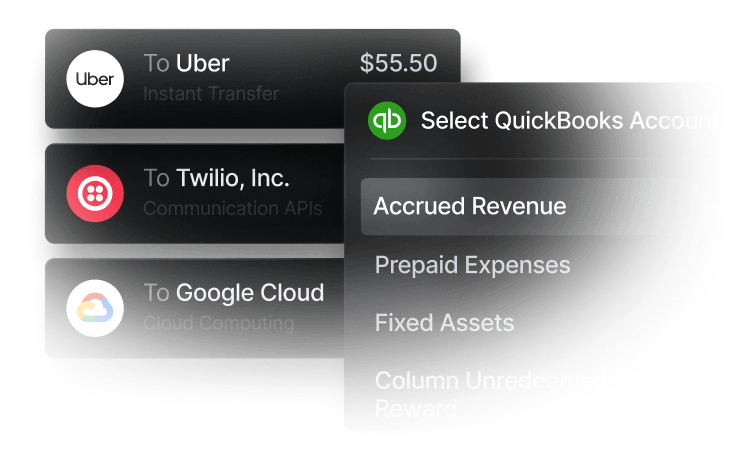
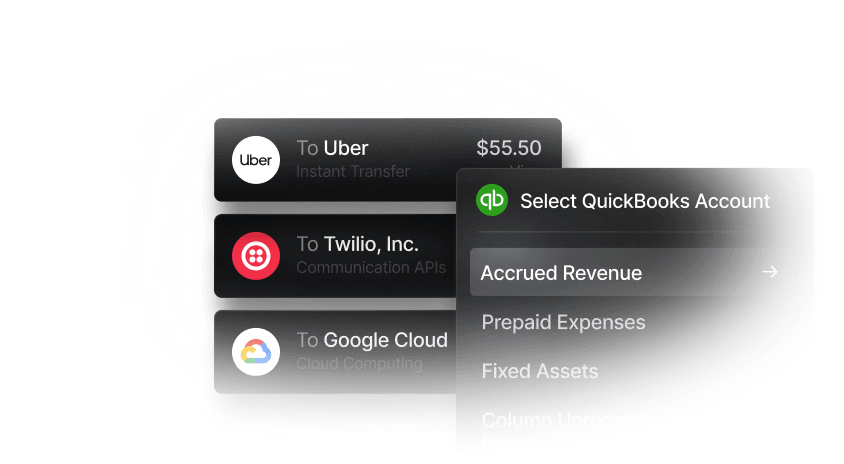
- Accounting integrations: Sync transactions directly with QuickBooks to keep books up to date automatically. Slash also connects through Plaid and supports data imports from tools like Xero, making it easier to fit into existing accounting workflows.
- Native cryptocurrency support: Convert funds into USD-pegged stablecoins such as USDT or USDC to send transfers on the blockchain, offering an alternative payment method that can reduce costs and settlement times.⁴
Apply in less than 10 minutes today
Join the 10,000+ businesses already using Slash.
Frequently asked questions
Does Google have an invoice generator?
Google doesn’t offer a dedicated invoice generator, but you can create invoices using Google Docs or Google Sheets templates. These require manual setup and don’t include built-in payment tracking or invoicing workflows.
Can ChatGPT generate an invoice?
ChatGPT can help draft an invoice template or generate invoice text, but it can’t send invoices, accept payments, or track invoice status. Furthermore, relying on ChatGPT to input line items or payment information can be unreliable.
Do I need an LLC to create an invoice?
No, you don’t need an LLC to create or send invoices. Sole proprietors, freelancers, and independent contractors can issue invoices as long as they include accurate business and tax information. Individuals can also send invoices to create a paper trail for peer-to-peer payments like rent or utilities.
The Complete Guide to LLC Expenses and Tax Deductions


